You installed OBIEE 11G and you did not write down the Weblogic
Domain admin password, or you’ve had it installed for a while and can’t
remember what the password is to get into the WebLogic Admin console to
make a change. There is a (technical and tricky) way to reset this password.
1. Make sure all the services are down
2. change directory to <Middleware_Home>\user_projects\domains\bifoundation_domain\bin
cd <Middleware_Home>\user_projects\domains\bifoundation_domain\bin
3. Source the setDomainEnv.cmd(Windows) / setDomainEnv.sh (Linux) script so we can get all the WebLogic variables set correctly
In windows: setDomainEnv.cmd
In Linux: . setDomainEnv.sh
4. Now change the directory to security directory in your instance.
cd <Middleware_Home>\user_projects\domains\bifoundation_domain\security
5. Move the DefaultAuthenticatorInit.ldift to a backup file
In Windows:
mv DefaultAuthenticatorInit.ldift DefaultAuthenticatorInit_old.ldift
In Linux:
mv DefaultAuthenticatorInit.ldift DefaultAuthenticatorInit_old.ldift
6. Run the “java weblogic.security.utils.AdminAccount newuser newpassword .” to generate a new DefaultAuthenticatorInit.ldift with a new user with the assigned password within the security directory
eg: java weblogic.security.utils.AdminAccount weblogic weblogic123 .
Note: replace newuser and newpassword with a user and password
of your choosing. Ensure the password is a minimum of 8 characters and
contains at least one numeric character. Also, don’t forget the period
“.” at the end of the above command, it is required.
7. Change directory to <Middleware_Home>\user_projects\domains\bifoundation_domain\servers\AdminServer\security
cd <Middleware_Home>\user_projects\domains\bifoundation_domain\servers\AdminServer\security\
8. Edit the boot.properties file and replace newpassword and
newusername with the user and password you defined in step 6. Do this
for all the servers in the domain.
password=newpassword
username=newusername
The boot.properties will get encrypted once the admin server starts up
9. Rename or remove directory
<Middleware_Home>\user_projects\domains\bifoundation_domain\servers\AdminServer\data\ldap
as it will get recreated once the WebLogic Admin server starts.
e.g:
rename
<Middleware_Home>\user_projects\domains\bifoundation_domain\servers\AdminServer\data\ldap
<Middleware_Home>\user_projects\domains\bifoundation_domain\servers\AdminServer\data\ldap_OLD
10. Change directory to
<Middleware_Home>\user_projects\domains\bifoundation_domain\bin
and start the Weblogic Admin Server
In Windows: startWebLogic.cmd
In Linux: ./ startWebLogic.sh
11. Once the weblogic server is up, you’ll be able to login to Console with the new weblogic Admin user and password.
Showing posts with label obiee 11g change password. Show all posts
Showing posts with label obiee 11g change password. Show all posts
Friday, 22 November 2013

Wednesday, 6 November 2013
OBIEE - Change Repository Password
If you need to change your repository password, the one you use to 'unlock' the repository for editing or uploading, it is relatively simple to change
In the File menu is a “Change Password” option

Saturday, 19 May 2012
OBIEE 11G - Changing Your Password
The Challenge
There is always more than one way to do something. Setting up the functionality to change your password in OBIEE 11G is no different.Our experience proved that it is not technically challenging, all the documentation is there, you merely have to spend an hour or so gathering all the facts, doing a little research, and then the fun starts.
Our Solution
We decided to deploy a JSP and class as a WAR. Mainly because that is something we could achieve and where our experience lay.We are currently running OBIEE 11.1.1.6 so a careful hunt through the compatibility matrix reveals that Jdeveloper 11.1.2.1 is a good match.
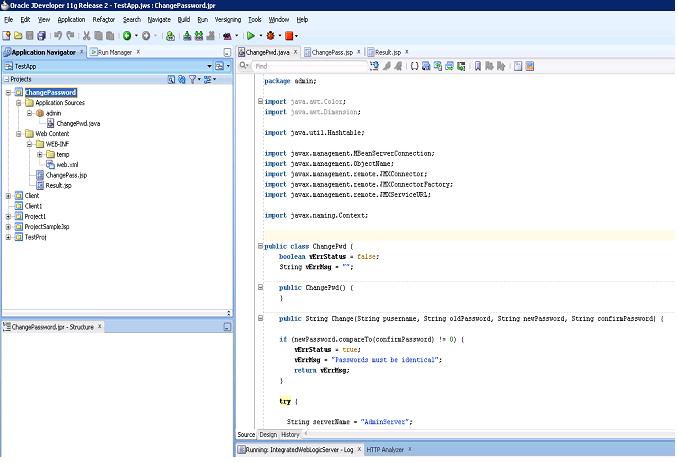
Coding the Java Class
In essense we are going to make a connection to the security mbean and invoke a changeUserPassword
invoke(securityMBeanName,"changeUserPassword",objuser, objstr);
So fire up JDeveloper and lets start
Calling the JSP
We will create a narrative report and use the Session Variable USER as a parameter in our URL call to the JSP.
The JSP
So we have coded and tested our class now we need a JSP that will use the class. From the narrative report we know the user name and now we can concentrate on the password change functionality.
We use 3 fields Old Password, New Password and Repeat New Password. By using a web page we have the ability to obscure the characters being entered.
Deploying the WAR
Wrap everything JSP and Class in a WAR - fortunately this is nearly a one click operation in JDeveloper.
Place the WAR file in a directory on the OBIEE server and deploy using the console.
You can then call your password change using the narrative report.
Subscribe to:
Posts (Atom)